 UniFiles
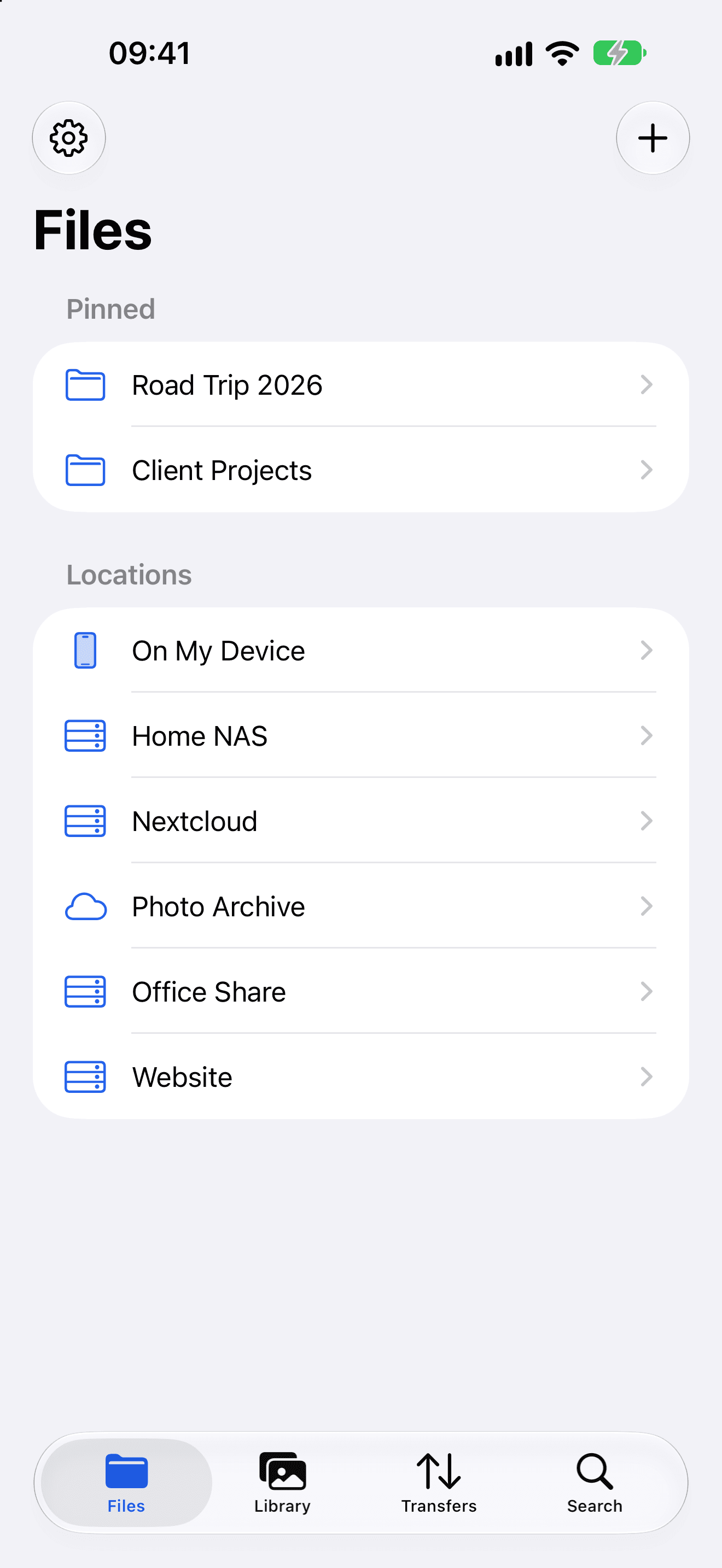
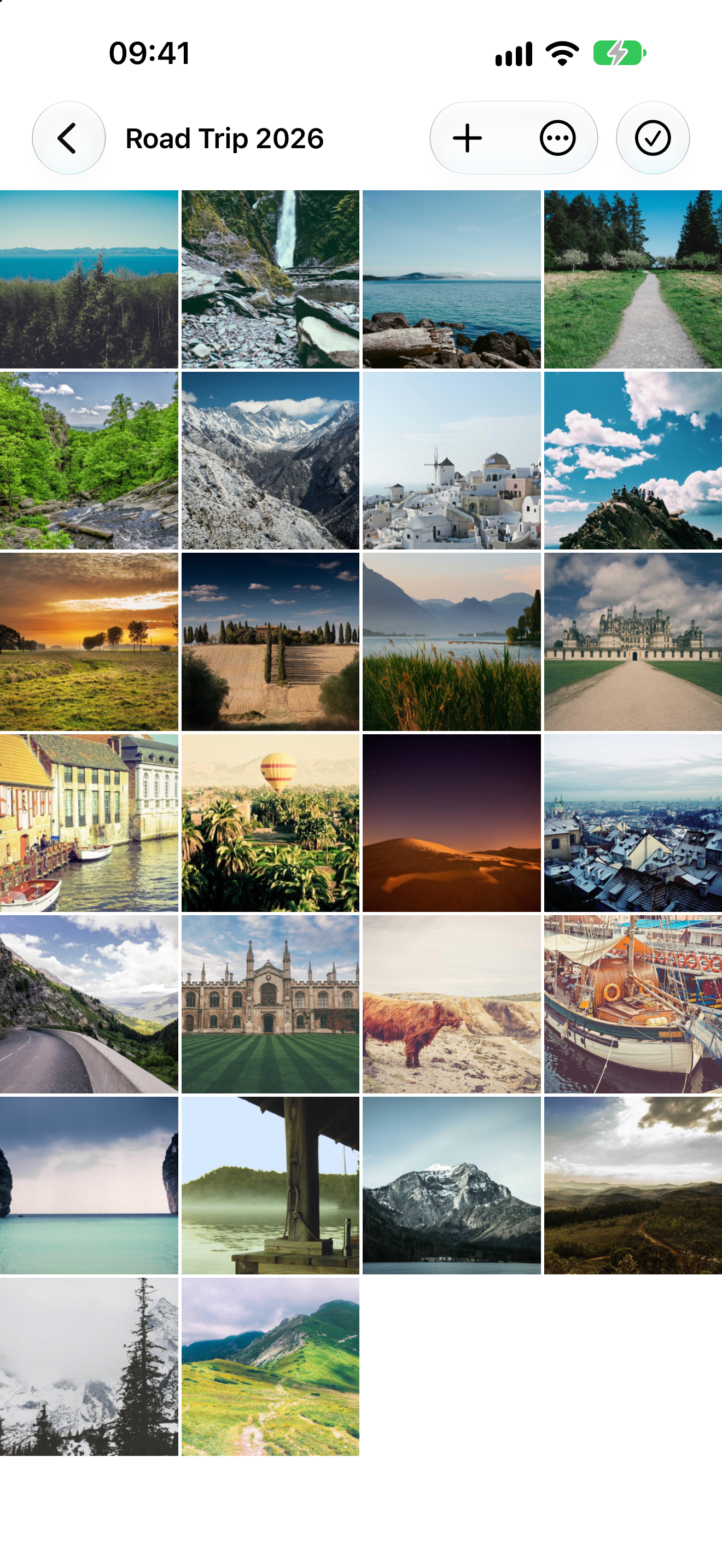
Browse naturally
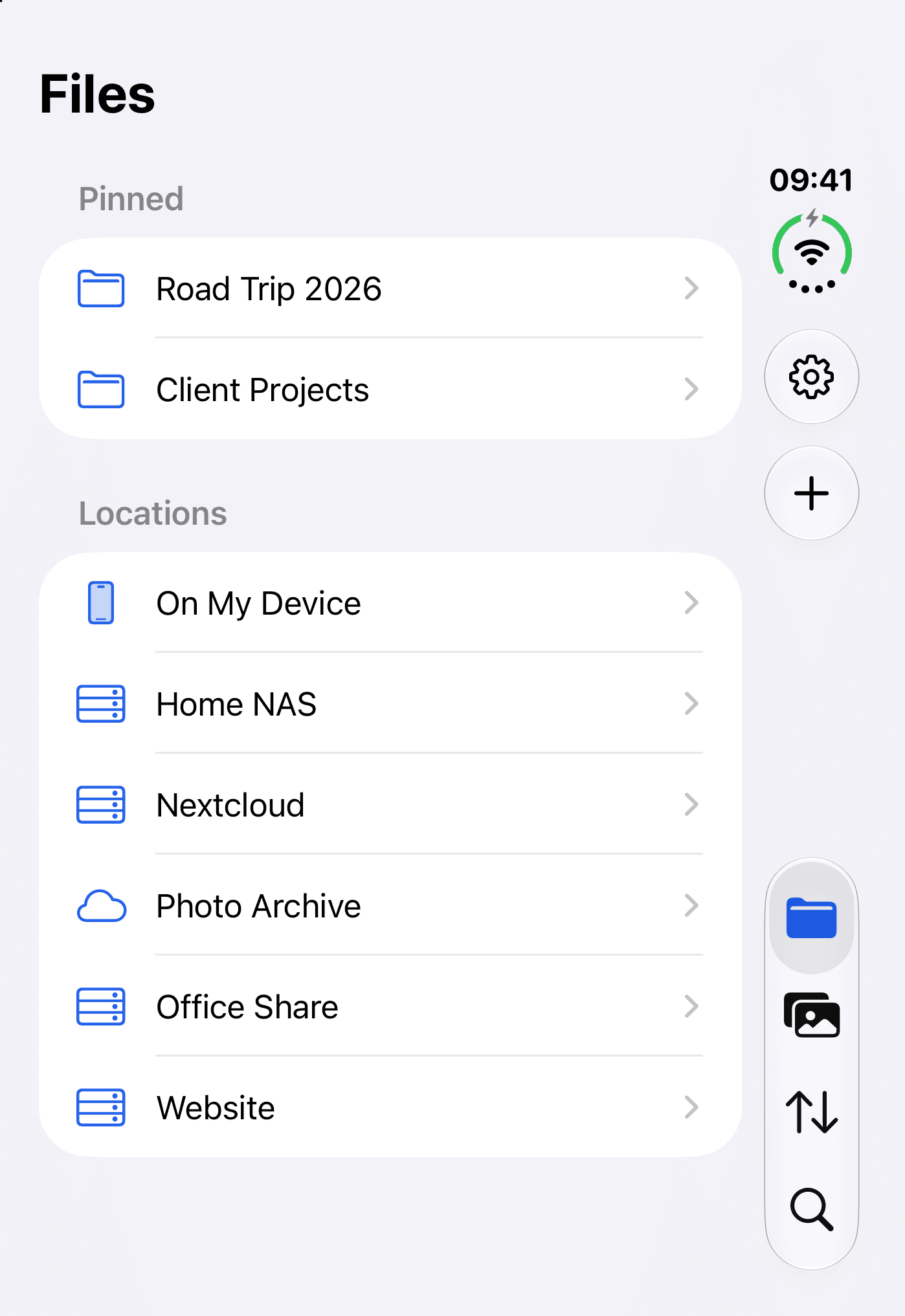
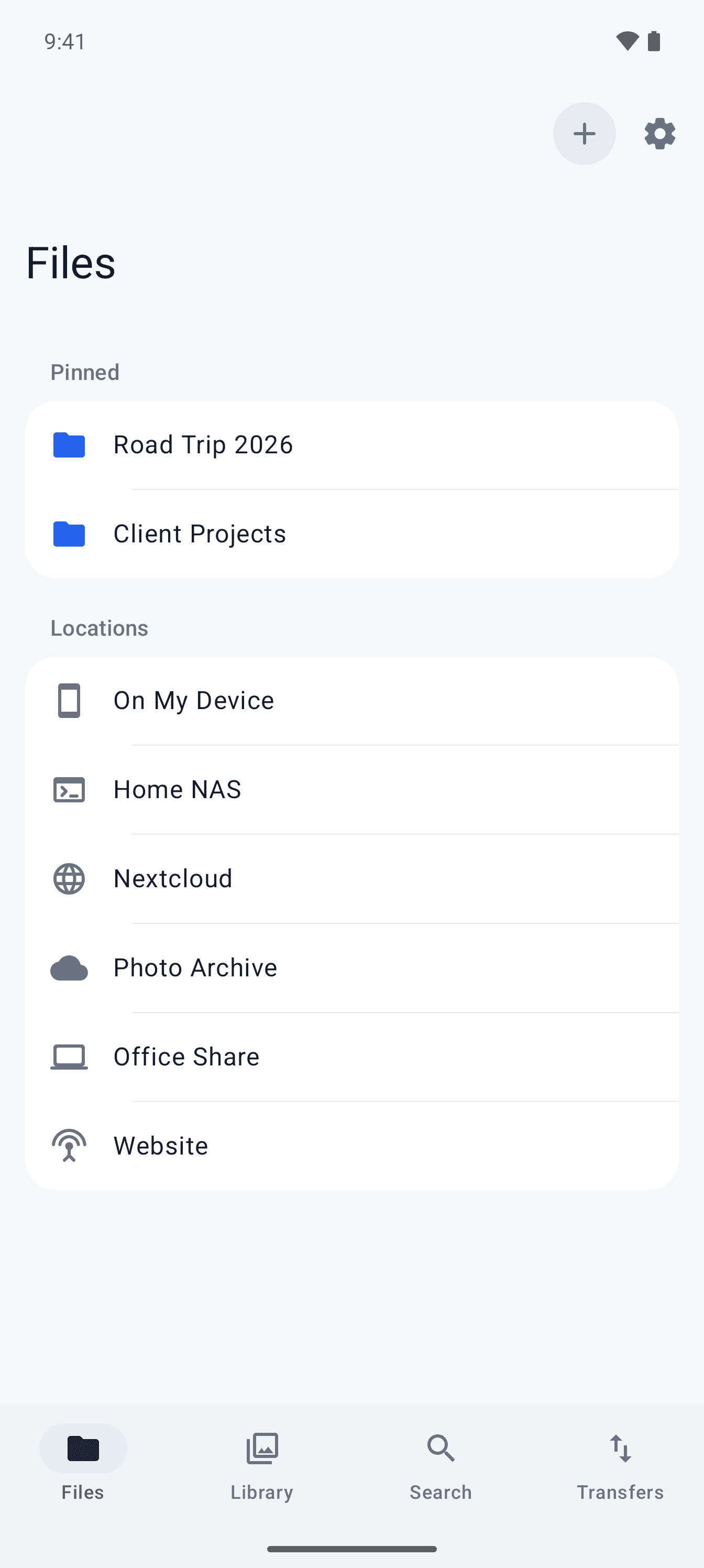
Familiar folders, image thumbnails, and list or grid views.
Your files. Your storage. Your rules.
From your pocket to your NAS. Bring local files, servers, and cloud storage together in a file manager that feels right at home.
Made for iPhone, iPad & Android
Connect what’s yours
Your home server, a work bucket, a folder on your phone. Browse them side by side, without switching apps for every connection.
 UniFilesYour device
Device → your storage. No UniFiles backend in between.
Familiar folders, image thumbnails, and list or grid views.
Copy and move files between locations. Keep an eye on every transfer.
Pin your go-to folders and find files without retracing every step.
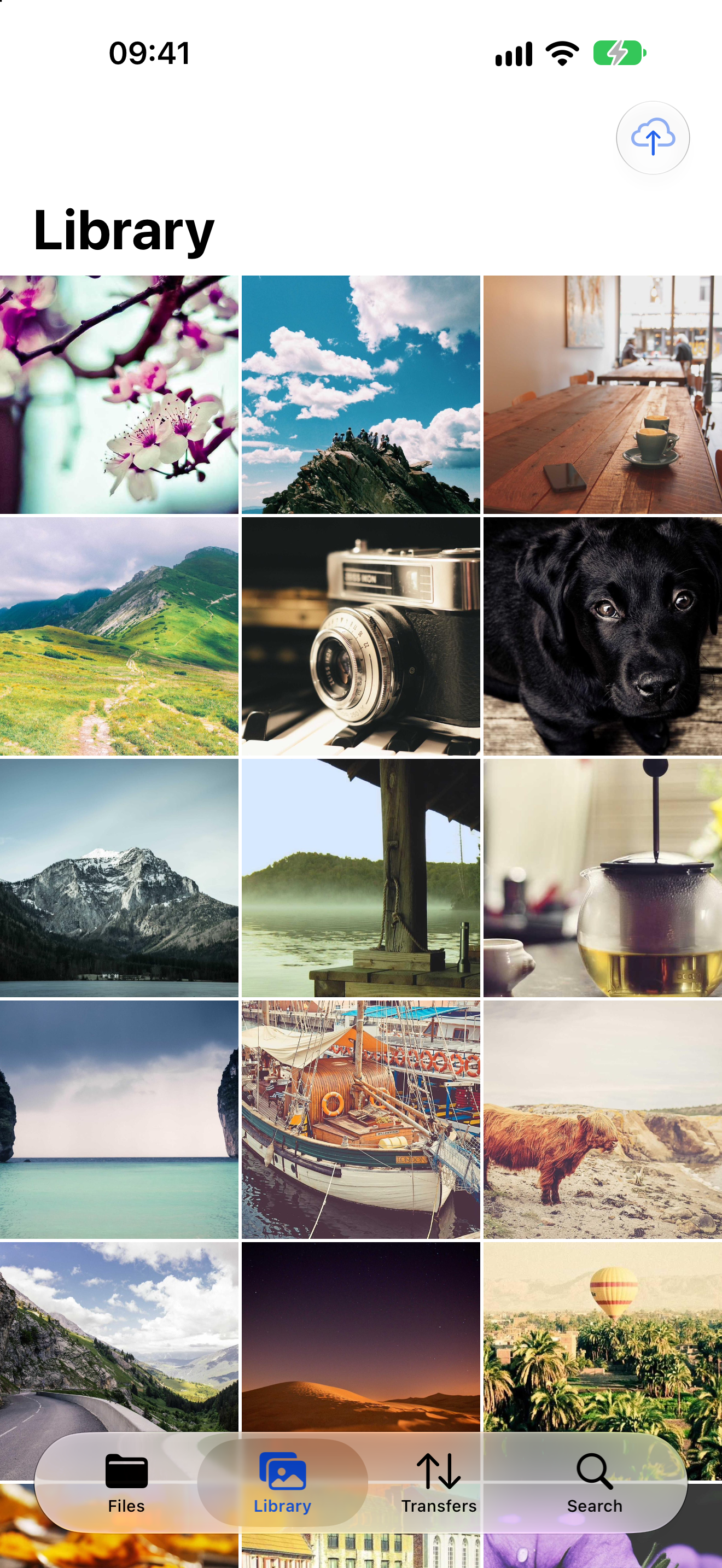
Give your photos and videos a home on your NAS or cloud storage. Choose the destination and let UniFiles handle the copying.
Connect a destination you already own.
Pick what to back up and set Wi-Fi and charging preferences.
Verify backups before choosing to remove originals.
A small change to a config file. A quick look inside an archive. The everyday tools you need, already in your file manager.
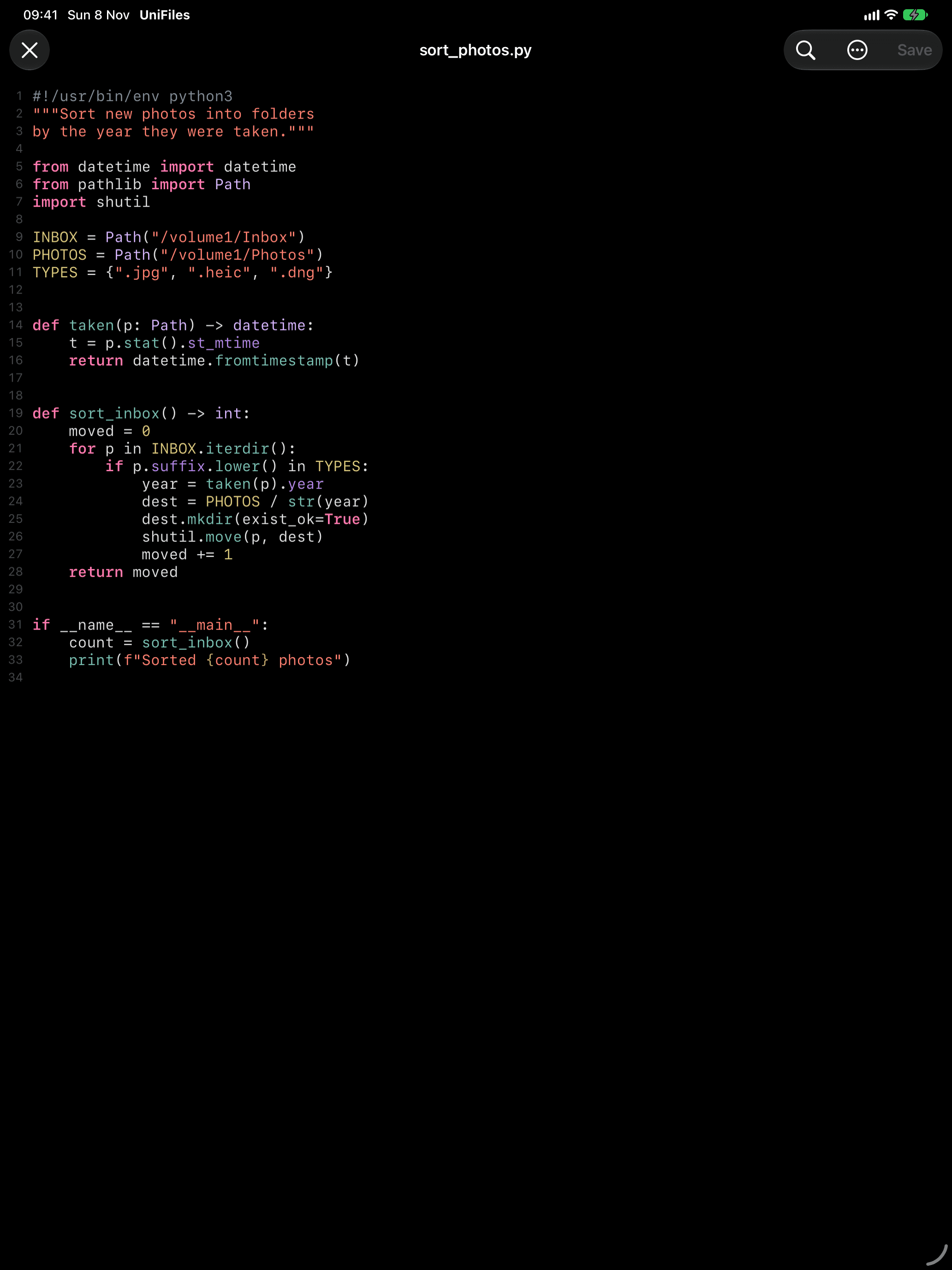
Work with text and code using syntax highlighting, find, and replace.
Browse inside ZIP archives. Extract files or create ZIP and TAR archives.
View photos and documents directly from the storage where they live.
Liquid Glass on iOS 26. A roomy sidebar on iPad. Material 3 and wallpaper colors on Android. A dedicated layout on iPhone Duo. Familiar controls, made for the device in your hand.
iOS 16 or later · Android 8 or later
No UniFiles account. No ads. No developer-operated analytics. Transfers go directly to the storage you configure.
Make room for a better file manager
UniFiles is coming to the App Store and Google Play. Store downloads will be linked here when the release is available.
No. Open the app and start with files on your device, or add storage you already use. There’s no UniFiles account to create and no advertising.
Open Files, tap +, and choose your storage type. Enter the address and credentials from your server or provider. For S3-compatible storage, check the endpoint, bucket, region, and access credentials.
Check the address, port, credentials, and network access. On iPhone or iPad, allow Local Network access in Settings for a nearby NAS. Some providers require an app password or a specific WebDAV URL.
Select files, choose Copy or Move, then open the destination and paste. Follow progress in Transfers, where you can pause, retry, or cancel jobs.
Open Library and set up a backup destination. Grant photo access, choose what to include, and review Wi-Fi and charging preferences. Background work depends on your device’s permissions and power settings.
Removing a saved connection does not delete the files on that server. Manage remote copies at their storage destination, and revoke photo or file permissions in your device’s settings whenever you need to.
For a support request, include your app version, device, operating system, and the steps that led to the problem. Please leave out passwords, private keys, and private files.
All Creaton product support ↗Privacy policy ↗Data deletion ↗Terms of use ↗EULA ↗